Table of Contents
You just spotted an incredible font on a packaging design, web banner, or client mockup, but the developer has flattened it into a PNG — meaning you can't inspect the element in DevTools.
Don't waste time guessing or browsing endless font catalogs. Neural visual font finders can now isolate character shapes and determine font families in under 3 seconds.
Follow this quick 5-step tutorial to identify any font from a photo or screenshot right now.
Ready to scan your font image?
Drag your file or paste with Ctrl+V to identify the font and grab the free Google Fonts twin instantly.
PNG, JPG, WEBP • No signup or search limits required
1. What You Need
All you need is:
• A clean screenshot or photo containing at least 3–5 distinct characters (in PNG, JPG, or WEBP).
• A web browser to open the Font Finder AI tool.
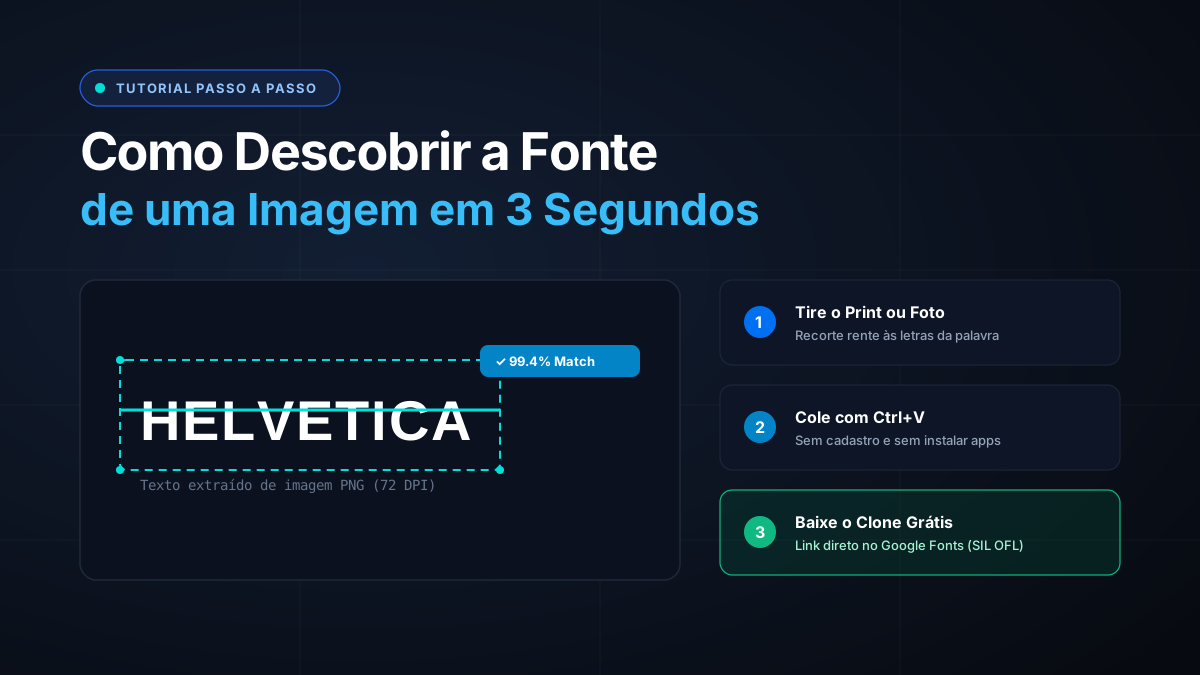
2. Step 1: Crop and Prep Your Image
The accuracy of optical font matching depends heavily on clean framing:
Use your operating system's native snipping tool (Win + Shift + S on Windows, Cmd + Shift + 4 on macOS) to capture just the target line of text.
Crop out noisy background textures, human faces, or distracting visual decorations.
If the text is curved or rotated on an angle, use a basic photo editor to rotate it horizontal before running the scan.
3. Step 2: Upload or Paste into the AI Detector
Head to the Font Finder AI home screen:
• Simply hit Ctrl + V (Cmd + V on Mac) to paste your freshly snipped clipboard image directly.
• Or drag-and-drop the saved file onto the dashed upload canvas.
The neural engine parses the character glyphs in real-time.
4. Step 3: Review Matches and Free Twins
Once scanned, the engine presents you with two critical pieces of intelligence:
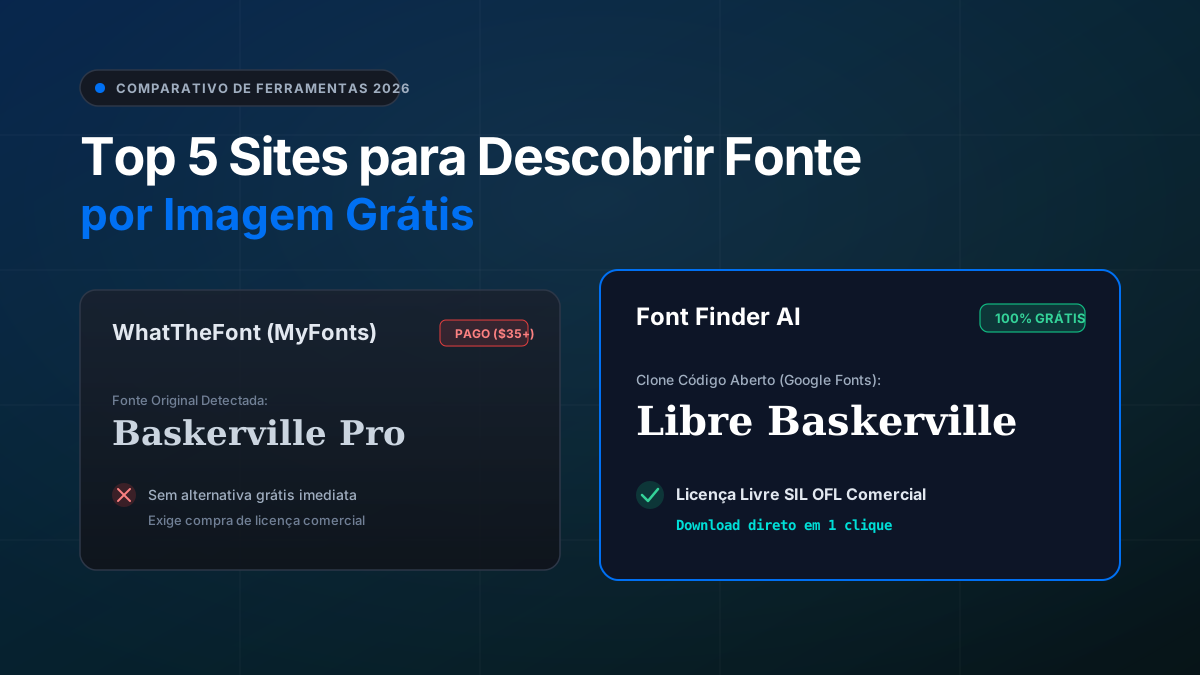
1. The Original Font Family: The exact commercial or proprietary typeface found.
2. The Open-Source Twin (Google Fonts): A 100% free equivalent with matching stroke weights and proportions ready for commercial deployment.
5. Common Pitfalls to Avoid
Ensure you steer clear of these three common recognition mistakes:
- Low-Resolution Text: Images with blurry letters under 24px in height lose edge sharpness.
- Touching or Connected Script Letters: If letters overlap continuously, separate them slightly in an image editor first.
- Extreme Gradients: Text with harsh linear drop-shadows or color gradients can confuse letter-boundary detection.
Frequently Asked Questions
What is an open-source font twin?
An open-source font twin is an open font (typically hosted on Google Fonts under the SIL OFL) engineered with proportions, metrics, and design aesthetics nearly identical to a famous proprietary commercial font.
Is there any cost or limit on scans?
None. You can identify as many images as you need with zero limits and no account required.
Conclusion
Finding and matching typefaces has never been this effortless. With this 3-step workflow, you can spot inspiration anywhere, identify the font immediately, and equip your design toolkit with compliant, beautiful typography.
Upload your image to the online font finder at the top of the page and see it in action!