Table of Contents
- 1.1. The Missing Fonts & Rasterized Layers Crisis
- 2.2. Using Photoshop Match Font (and Where It Fails)
- 3.3. Identifying Fonts in Figma Without Slow Plugins
- 4.4. Table: 6 Adobe Fonts & Free Google Fonts Substitutes
- 5.5. How to Install Fonts for Instant Sync Across Apps
- 6.6. Frequently Asked Questions (FAQ)
Every professional designer knows the dreaded alert dialog when opening a client project: "Missing fonts in document".
Even worse is receiving a flattened PNG banner or an Illustrator vector with outlined text (Ctrl+Shift+O) where all font metadata has been stripped away. Without the exact typeface name, matching the client’s branding feels like pure guesswork.
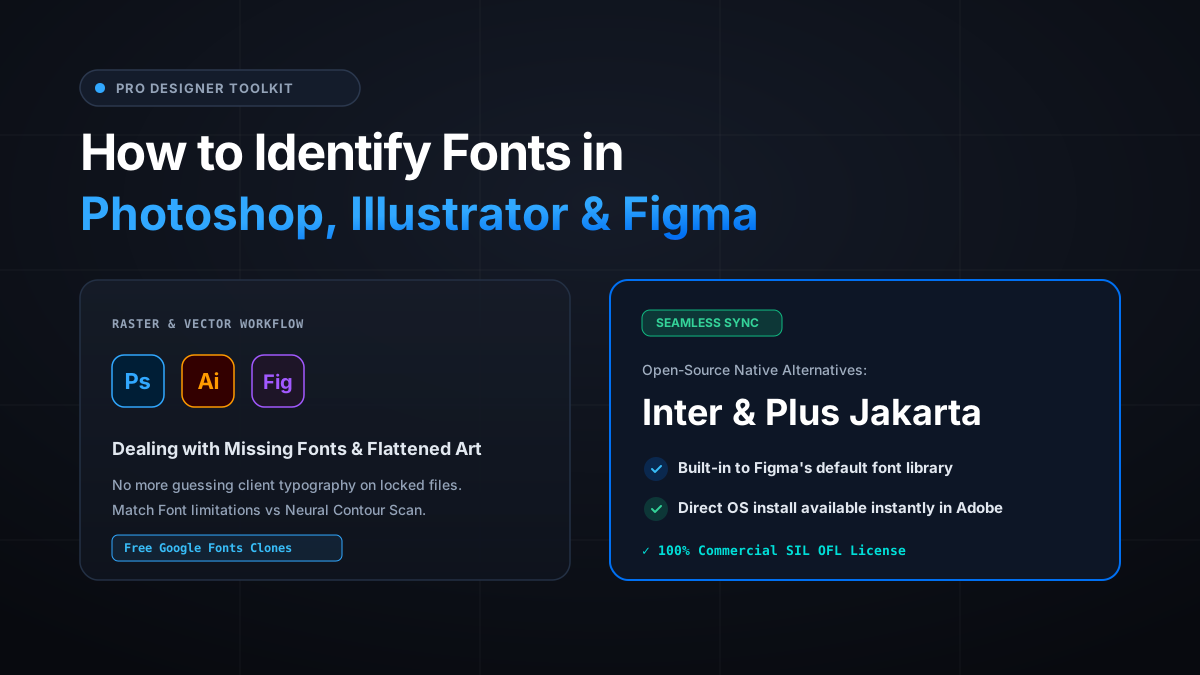
In this fast guide, we show you how to identify fonts in Adobe Photoshop, Illustrator, and Figma, and map them to free open-source Google Fonts in seconds.
Ready to scan your font image?
Drag your file or paste with Ctrl+V to identify the font and grab the free Google Fonts twin instantly.
PNG, JPG, WEBP • No signup or search limits required
1. The Missing Fonts & Rasterized Layers Crisis
When text layers are rasterized in Photoshop or converted to outlines in Illustrator, the application treats the letters as raw pixels or closed vector paths.
Standard character inspection panels become useless because the font engine no longer recognizes the shapes as typography.
2. Using Photoshop Match Font (and Where It Fails)
Photoshop includes a native tool called Match Font:
1. Open the image in Photoshop and draw a rectangular marquee (M) around the word you want to identify.
2. Go to the top menu: Type > Match Font.
While useful for basic tasks, Match Font is restricted primarily to Adobe Fonts (Typekit), requiring an active Creative Cloud subscription. It frequently fails on noisy backgrounds, rotated text, or non-Adobe typefaces.
If your image has low contrast, apply a quick Levels adjustment (Ctrl+L) to make the text pure black on a pure white background before scanning.
3. Identifying Fonts in Figma Without Slow Plugins
Figma does not offer a native OCR font detector for imported raster images.
Rather than slowing down your workspace with heavy third-party plugins, the fastest method is to take a quick screenshot in Figma and paste it (Ctrl+V) directly into Font Finder AI.
In under 3 seconds, you get the identified typeface name and an identical Google Fonts twin that is already built into Figma’s default font picker!
4. Table: 6 Adobe Fonts & Free Google Fonts Substitutes
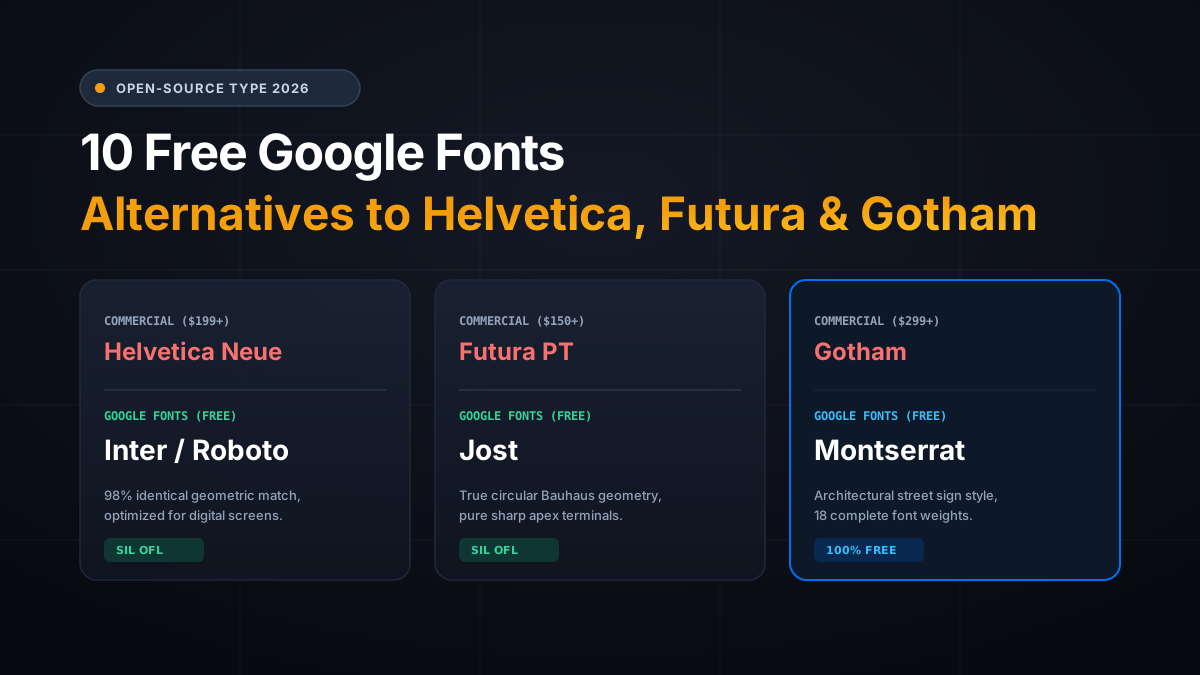
If the identified Adobe typeface is paid, here are the identical open-source twins on Google Fonts:
| Commercial Adobe Font | Design Style | Free Google Fonts Twin | Native to Figma? |
|---|---|---|---|
| Proxima Nova | Modern Grotesque | Montserrat / Inter | 100% Native |
| Futura PT | Geometric Sans | Jost / League Spartan | 100% Native |
| DIN 2014 | Industrial Condensed | Barlow / Oswald | 100% Native |
| Brandon Grotesque | Rounded Geometric | Josefin Sans / Nunito | 100% Native |
| Garamond Premier Pro | Classical Serif | EB Garamond | 100% Native |
| Avenir Next | Humanist Geometric | Nunito Sans / Mulish | 100% Native |
5. How to Install Fonts for Instant Sync Across Apps
After downloading your free .TTF or .OTF file from Google Fonts:
• On Windows: Double-click the font file and click Install (or select all weights and choose "Install for all users").
• On Mac: Open Font Book and drag the font files into the "All Fonts" panel.
Photoshop, Illustrator, and Figma will detect the newly installed font immediately without requiring an application restart.
Frequently Asked Questions
Are all Google Fonts available in Figma by default?
Yes! The entire Google Fonts library (over 1,500 families) is natively accessible in Figma without any local installation.
Can Font Finder AI recognize fonts in Illustrator EPS files?
Yes. Simply take a screenshot of the outlined vector artwork in Illustrator and paste it into Font Finder AI with Ctrl+V.
Conclusion
Stop wasting hours guessing typography in client assets.
Drop your screenshot into Font Finder AI and get the exact font and free twins in seconds!