Table of Contents
You've just received a sleek PDF proposal from a client, or found an annual report with typography you desperately want to match. There's one problem: PDFs are sealed envelopes — they don't come with a label saying "this is Helvetica Neue Light at 11pt."
But here's the thing: fonts are technically embedded in most PDFs — they're just not labeled in an obvious place. And even when they're not, you can still identify them in under 60 seconds using the right tool. This guide walks through 4 free methods, ranked by speed and ease.
Ready to scan your font image?
Drag your file or paste with Ctrl+V to identify the font and grab the free Google Fonts twin instantly.
PNG, JPG, WEBP • No signup or search limits required
1. Why PDFs Hide Font Data
PDFs can embed fonts in three ways: fully embedded (entire font file inside), subset-embedded (only the characters actually used are stored to save file size), or not embedded at all (relies on the viewer's system fonts).
When fonts are subset-embedded — which is the most common case for professionally designed PDFs — the font names are technically still readable via metadata. When they're not embedded at all, you need visual identification methods.
Either way, the methods below cover all three scenarios without requiring a $600 Adobe license.
2. Method 1: Screenshot → Font Finder AI (Fastest — 30 Seconds)
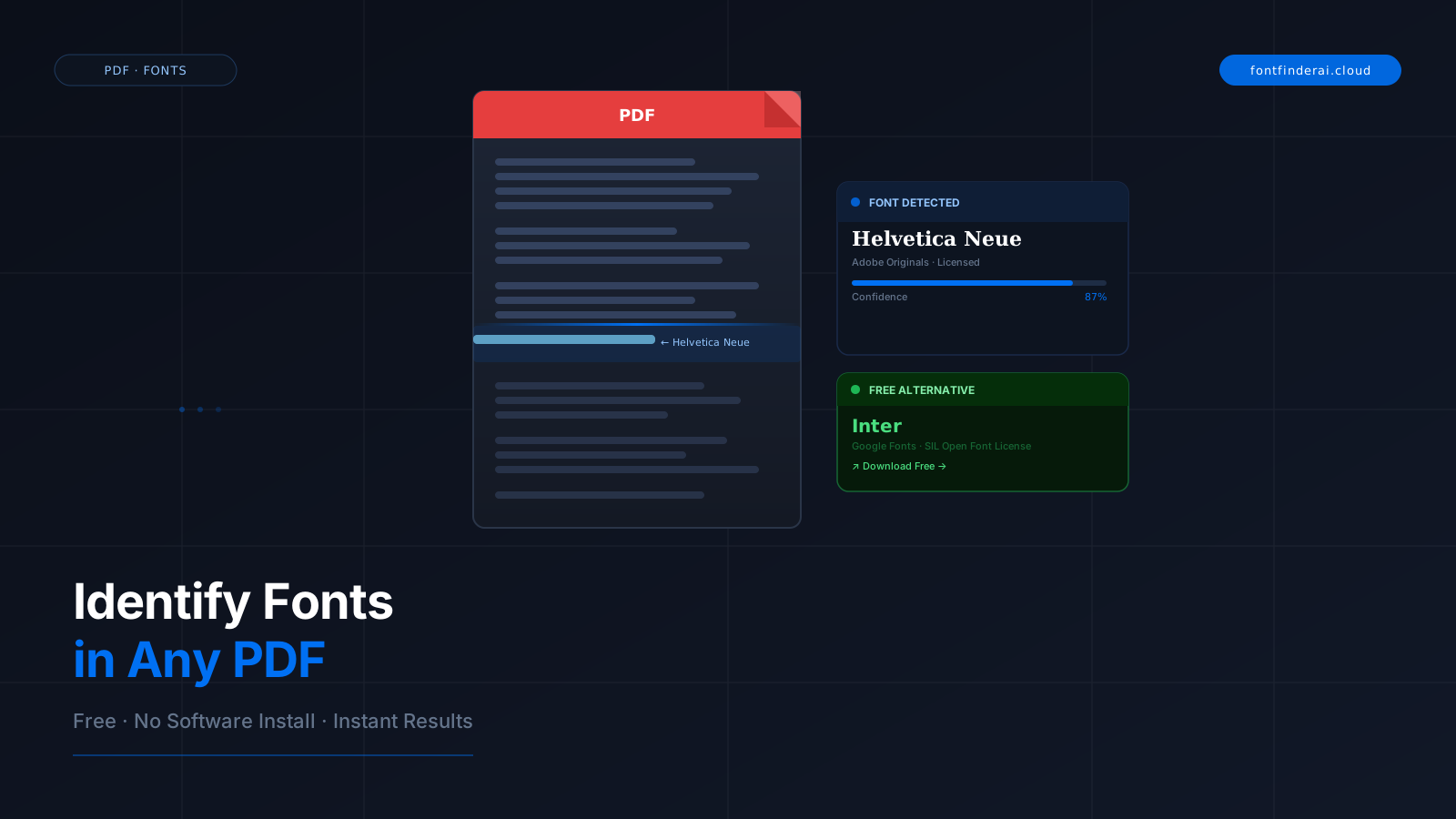
This works for any PDF, regardless of embedding. It's purely visual identification — exactly how a human designer would do it.
Step 1: Open your PDF and zoom to the text whose font you want to identify. Use your browser's built-in PDF viewer (Chrome, Edge) or any app.
Step 2: Take a screenshot or snip of that text section. On Windows: Win + Shift + S. On Mac: Cmd + Shift + 4.
Step 3: Go to Font Finder AI and drop your screenshot into the detector.
Step 4: Get the font name, style classification, and a list of free open-source alternatives — all in under 30 seconds.
Best for: Scanned PDFs, image-only PDFs, any PDF regardless of embedding status, situations where you need both the font name AND a free alternative.
3. Method 2: Adobe Acrobat Reader — File Properties Fonts Tab (Free)
Adobe Acrobat Reader (the free version, not Acrobat Pro) can show you a full list of embedded fonts in any PDF.
Step 1: Open the PDF in Adobe Acrobat Reader (download free at adobe.com). Step 2: Click File → Properties (or Ctrl+D on Windows, Cmd+D on Mac). Step 3: Click the Fonts tab.
You'll see: A complete list of every font in the document — name, type (Type1, TrueType, OpenType), encoding, and whether it's embedded or not.
Limitation: If the PDF uses subset-embedded fonts, the font name may appear with a 6-character prefix like ABCDEF+HelveticaNeue — just ignore the prefix, the name after the + is the actual font.
Best for: Modern professionally-created PDFs with embedded fonts. Doesn't work for scanned/image PDFs.
4. Method 3: pdffonts CLI Tool (Power Users — Linux/Mac)
If you're on Linux or macOS and comfortable with the terminal, pdffonts is a lightning-fast command-line tool from the Poppler utilities library.
Install on macOS: brew install poppler | Install on Ubuntu/Debian: sudo apt-get install poppler-utils | Run it: pdffonts yourfile.pdf
Output shows every font on every page: name, type, and whether it's embedded (emb), subset (sub), and unicode (uni) — all in under 5 seconds.
Best for: Batch processing, scripting workflows, and developers extracting font metadata programmatically.
5. Method 4: Inkscape SVG Import Trick (For Vector PDFs)
If the PDF contains vector text (not rasterized images), Inkscape — a free open-source vector editor — can import the PDF and show you text objects with their original font properties.
Step 1: Download and install Inkscape (free, cross-platform). Step 2: Open Inkscape → File → Import → select your PDF.
Step 3: Click on any text element in the canvas. Step 4: Open the XML Editor (Ctrl+Shift+X) — you'll see the font-family attribute in the SVG properties.
Best for: Marketing brochures, presentations, and branded PDFs created from vector applications (InDesign, Illustrator). Not useful for scanned document PDFs.
If Acrobat or pdffonts shows a name like XABPKQ+GillSansMT-Italic, the 6-letter prefix is just an internal PDF subset identifier. The actual font name is everything after the +: GillSansMT-Italic.
| Method | Speed | Works on Scanned PDFs? | Shows Free Alt? |
|---|---|---|---|
| Font Finder AI (screenshot) | ⚡ 30 sec | ✅ Yes | ✅ Yes |
| Acrobat Properties | 🕐 1 min | ❌ No | ❌ No |
| pdffonts CLI | ⚡⚡ 5 sec | ❌ No | ❌ No |
| Inkscape import | 🕐 2 min | ❌ No | ❌ No |
Frequently Asked Questions
Can I identify fonts in a scanned PDF?
Yes — use Method 1 (Font Finder AI). Take a screenshot of the text in the scanned PDF and upload it. Since Font Finder AI uses visual AI recognition, it works on any image regardless of how the PDF was created.
What if Adobe Acrobat Reader shows no fonts in the Fonts tab?
This usually means the PDF is image-only (scanned document) or all text was flattened/rasterized before export. In this case, use the screenshot method with Font Finder AI — it's the only option that works visually.
Is pdffonts available on Windows?
Yes, but it requires installing Poppler for Windows separately. Search for "poppler windows binary" — there are pre-compiled versions available. Alternatively, use Windows Subsystem for Linux (WSL) and install it via apt-get.
Can I identify fonts from a password-protected PDF?
If the PDF is view-protected, you can still take a screenshot of the visible content and use Font Finder AI. If it's copy-restricted, all visual methods still work since you're working from a screenshot, not the file itself.
What if the PDF was made in Canva or Google Slides?
Canva PDFs typically embed fonts as subsets. Adobe Acrobat Properties will show the name. Common Canva fonts include DM Sans, Playfair Display, Lato, and Raleway — all available free on Google Fonts. Google Slides PDFs often use Arial and Roboto.
Conclusion
Fonts inside PDFs don't have to be a mystery anymore. Whether you're working with a scanned brochure or a vector-perfect InDesign export, one of these four methods will get you the font name in under two minutes.
Need a font name from a screenshot right now? Drop it into Font Finder AI and get the exact match plus a free alternative in under 30 seconds — no signup, no credit card.