Table of Contents
You are sitting in a hip cafe, spot a striking typeface on the menu or a wall mural, pull out your smartphone, snap a photo, and think: "What font is that?"
Most people instinctively rush to the Apple App Store or Google Play Store, download the first "Font Identifier" app they find, and immediately hit an aggressive paywall demanding a $9.99/week subscription or forcing 30-second unskippable video ads.
You do not need to install any apps. In this guide, we show you how to identify any real-world font directly through your mobile browser for free in under 5 seconds.
Ready to scan your font image?
Drag your file or paste with Ctrl+V to identify the font and grab the free Google Fonts twin instantly.
PNG, JPG, WEBP • No signup or search limits required
1. The Problem with App Store Font Identifiers
App Store font scanners are notorious for predatory monetization models:
They wrap basic open-source OCR wrappers in bloated interfaces, drain your device battery in the background, and lock scan results behind weekly subscription traps.
Modern web browsers (Safari, Chrome, Samsung Internet) are fully capable of running high-speed neural models directly on mobile devices without installing any native app.
2. How to Identify Fonts via Mobile Browser in 3 Steps
Identifying a font on your phone takes less than 10 seconds:
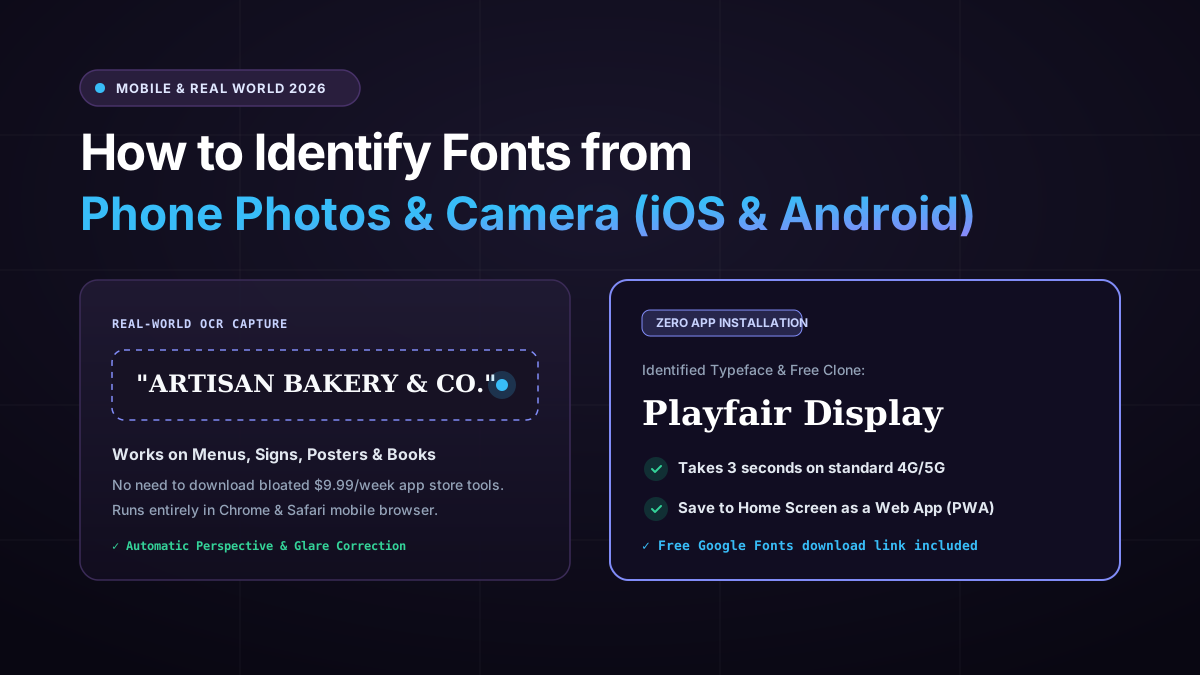
1. Open Safari or Chrome on your phone and navigate to Font Finder AI.
2. Tap the upload dropzone — your phone will prompt you to Take Photo or Choose from Photo Library.
3. Select your photo or crop. Within 3 seconds, the neural engine displays the identified font family and free Google Fonts download link.
Tap "Add to Home Screen" in your mobile browser to install Font Finder AI as an instant Progressive Web App (PWA) with zero storage footprint!
3. 4 Pro Tips for Capturing Clean Real-World Text
To prevent lens distortion and uneven lighting from degrading recognition accuracy:
• Shoot Perpendicular to the Surface: Hold your phone flat at a 90-degree angle to the sign or book to avoid perspective keystoning.
• Disable Flash on Glossy Surfaces: Flash on laminated menus or glass storefronts creates blinding glare that washes out letter contours.
• Step Closer Instead of Digital Zoom: Physical proximity preserves sharp glyph edges, whereas 10x digital zoom causes pixelated noise.
• Capture at Least 3 to 5 Distinct Letters: Words with varied anatomy (like "DESIGN" or "COFFEE") give the algorithm far more distinctive baseline cues than a single letter.
Frequently Asked Questions
Does the mobile font finder use heavy mobile data?
No. Images are automatically compressed client-side before processing, consuming only a few kilobytes of cellular data.
Can I identify fonts from blurry photos?
Yes, provided the crop isolates the word and there is sufficient contrast between the letterforms and background.
Conclusion
Never let a beautiful real-world typeface remain a mystery.
Bookmark Font Finder AI on your phone and identify fonts on the go whenever inspiration strikes!